Davinci Resolve for Windows shows HDR content 20% darker than reference
Davinci Resolve 20.3.1 for Windows shows HDR content with luminance values 20% darker than reference. So, a 100 nit HDR pattern will be displayed at 80 nits in Resolve’s viewer. As a result, there is a mismatch in luminance between the HDR viewer in Resolve, and the exported video (which has the correct luminance).
I suspect it is because Davinci Resolve scales PQ HDR values using 100 nits = 1.0, while Windows DWM displays 1.0 as 80 nits in HDR.
So I believe Blackmagic Design can fix this issue by scaling pixel values by 1.25 in a linear colorspace before passing to Windows DWM. I have created a bug report on the Blackmagic Forum here.
Resolve’s darker than reference HDR luminance was verified by generating a 100 nit PQ BT2020 test pattern in Davinci Resolve, using Color Space Transform: clip at 100 nits. The exported test pattern is available here.
The 100 nit test pattern was played side by side in MPV video player and Davinci Resolve. We can see that the 100 nits pattern looks darker in Davinci Resolve.
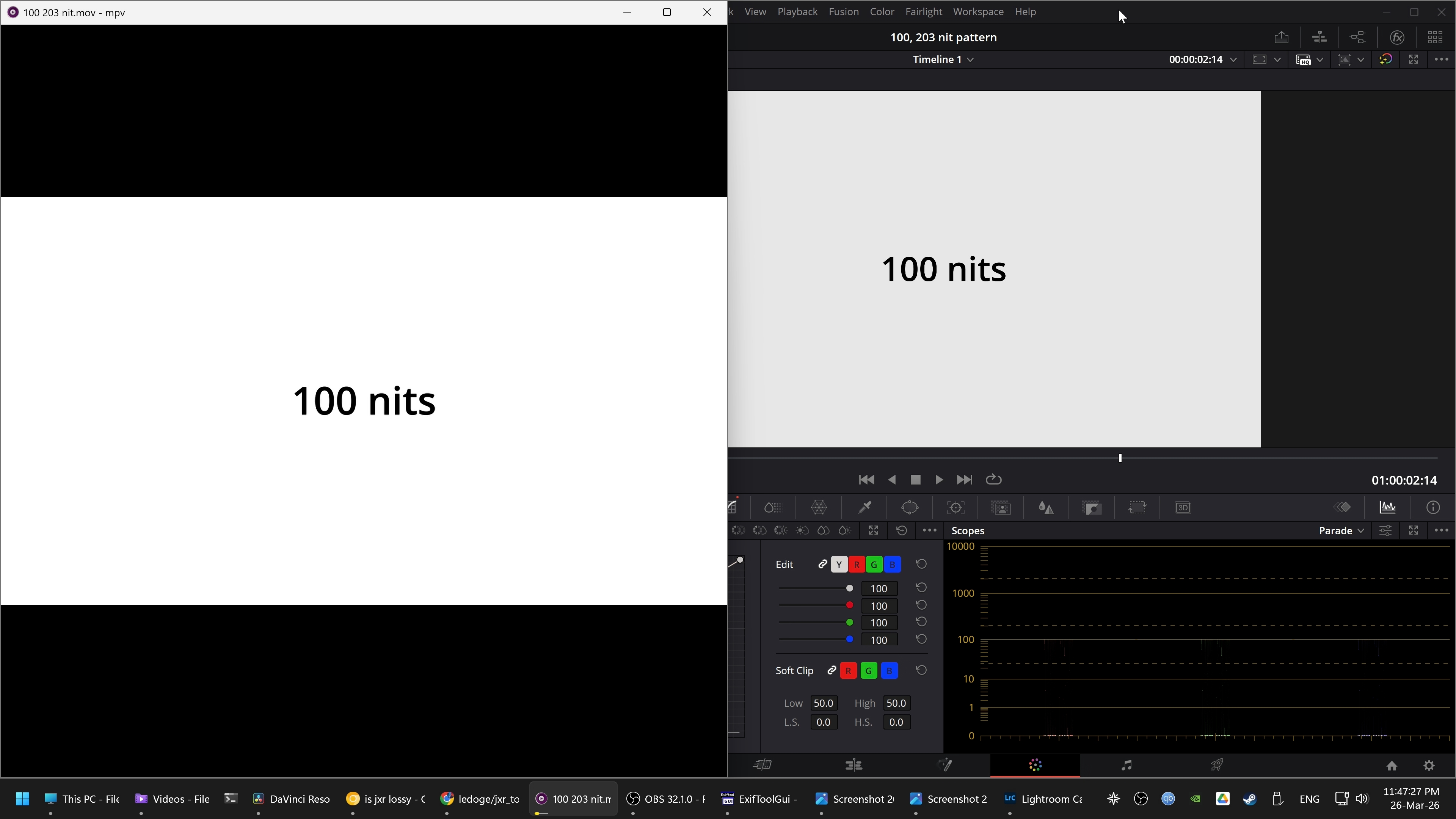
OBS was then used to record the screen in HDR (PQ BT2020), and the screen recording was imported back into Davinci Resolve. The screen recording was zoomed in so we can see the luminance of the white pattern using the scopes. The timeline colorspace is PQ BT2020.
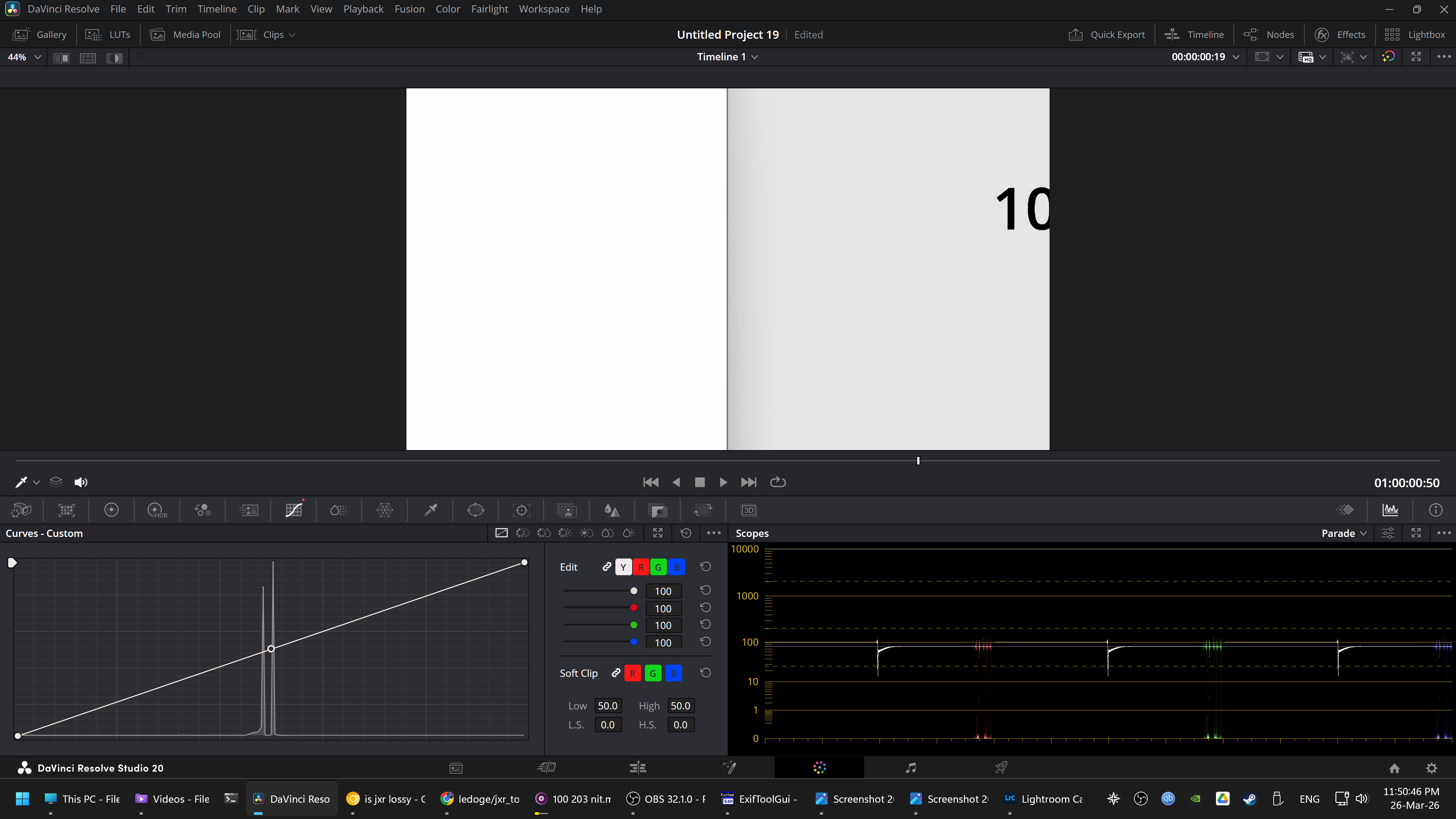
In Resolve’s ST2084 HDR scopes, we can see that the 100 nit test pattern played in MPV (on the left) renders at 100 nits, while the test pattern in Resolve (on the right) renders at 80 nits.
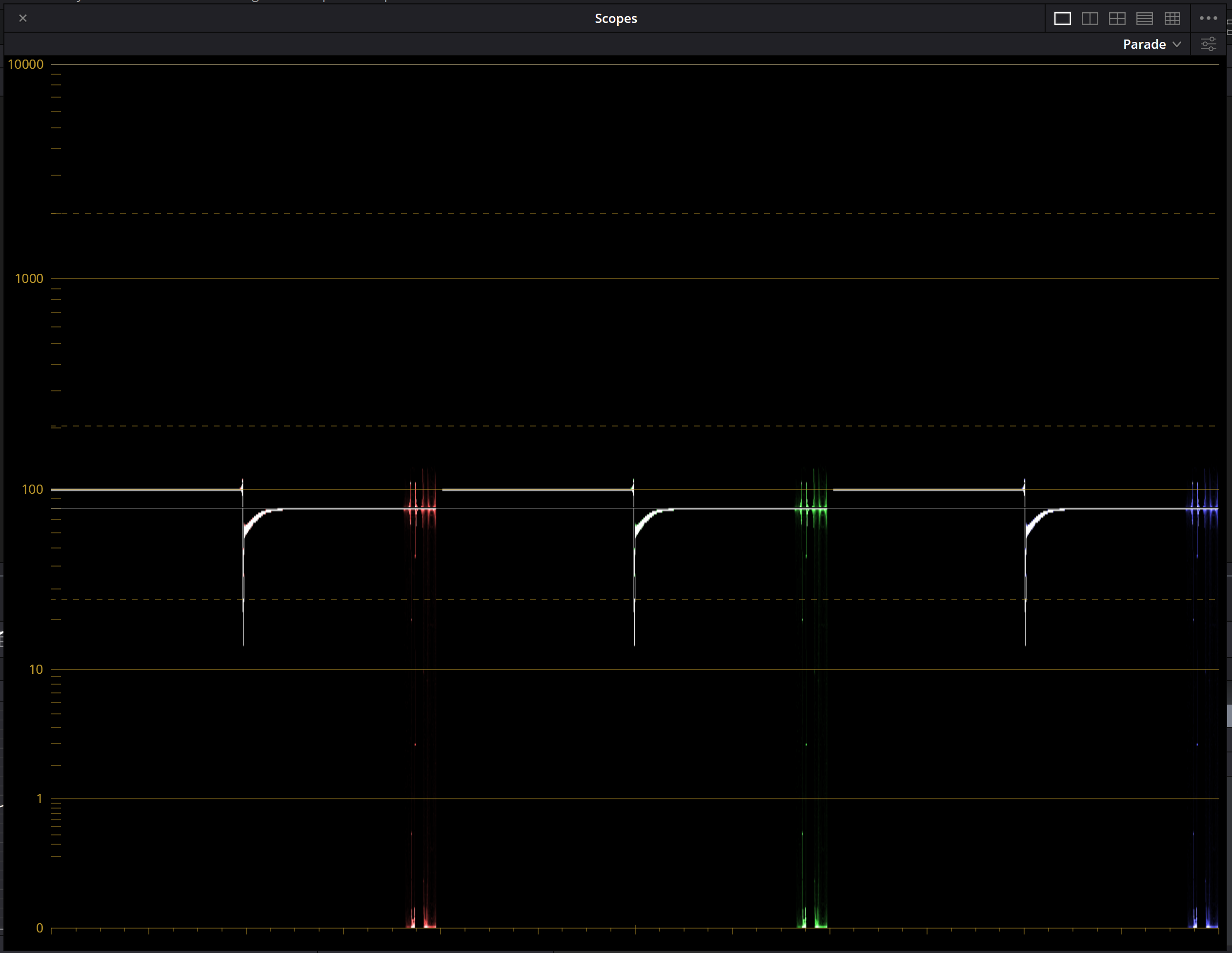
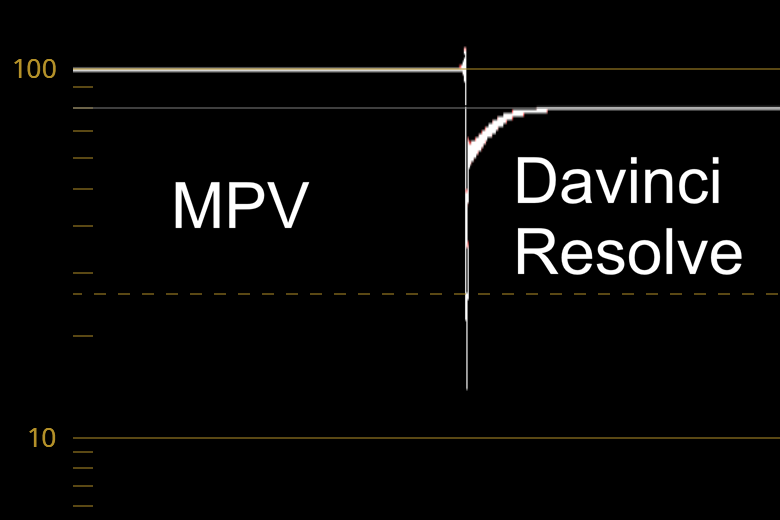
The test was repeated with a 1000 nit test image, and Resolve displays this at 800 nits.
Replicated on Windows 11 25H2 with Davinci Resolve 20.3.1, RTX 2080, HDR enabled in Windows settings and Resolve viewer (Use Windows display color management and HDR for viewers).
Update: Resolve also shows SDR projects at a fixed 80 nits, instead of Windows SDR brightness (e.g. 100 nits) when ‘Use Windows display color management and HDR for viewers’ is enabled
SDR projects refer to Resolve projects where the output colorspace uses Gamma or sRGB transfer functions.
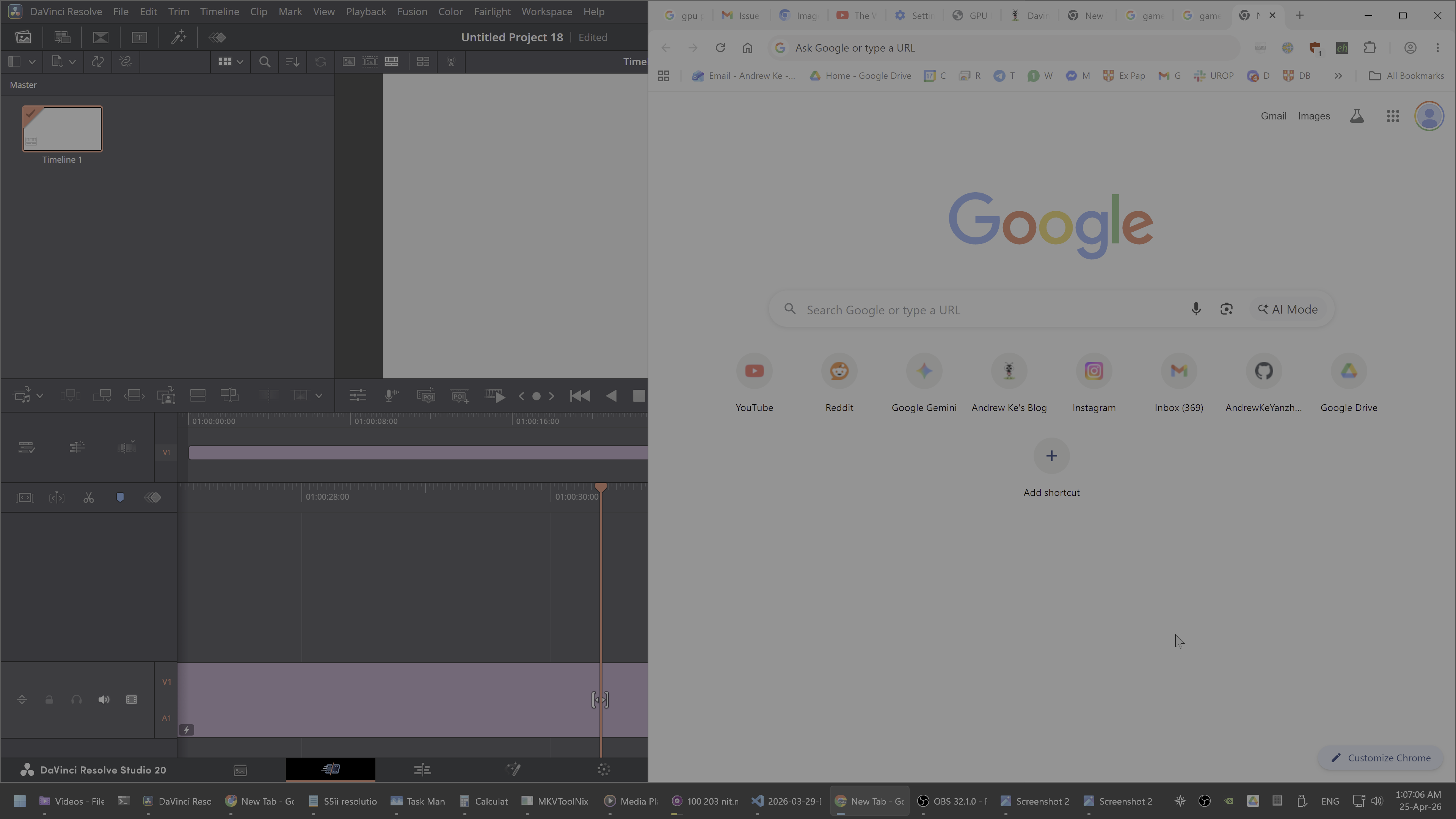
In this HDR screenshot, Chrome SDR white is at 100 nits, while Resolve shows an SDR white pattern at 80 nits. Use Windows display color management and HDR for viewers is enabled
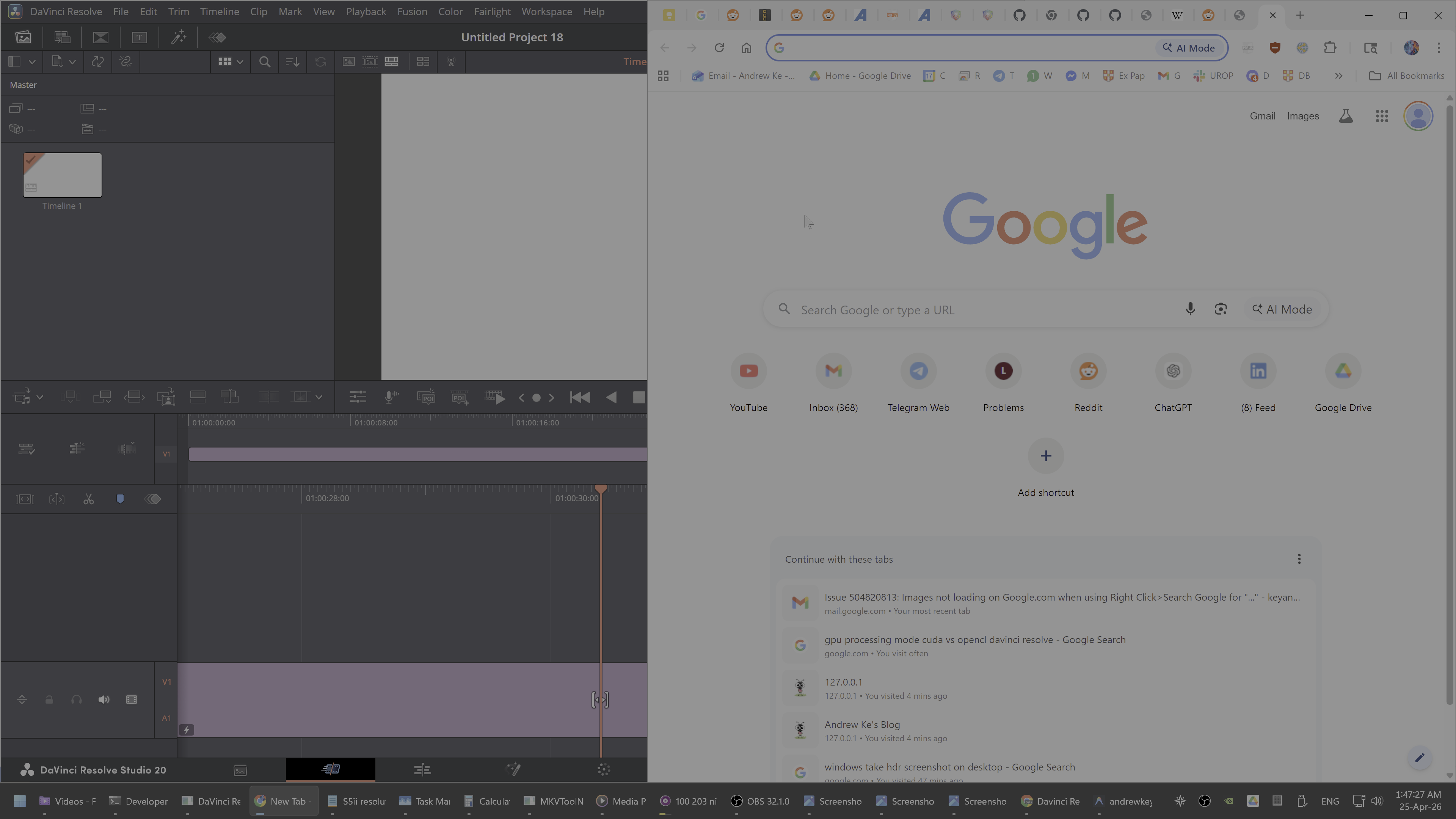
In this HDR screenshot, Chrome SDR white is at 100 nits, while Resolve shows an SDR white pattern at 100 nits. Use Windows display color management and HDR for viewers is disabled
So, you need to disable
Use Windows display color management and HDR for viewersif you want Resolve’s viewer to match the brightness of other SDR video players. To get Resolve’s viewer to show 100 nits SDR white, you need to set theWindows SDR content brightnesssetting to 5% so that Windows shows SDR content at 100 nits.
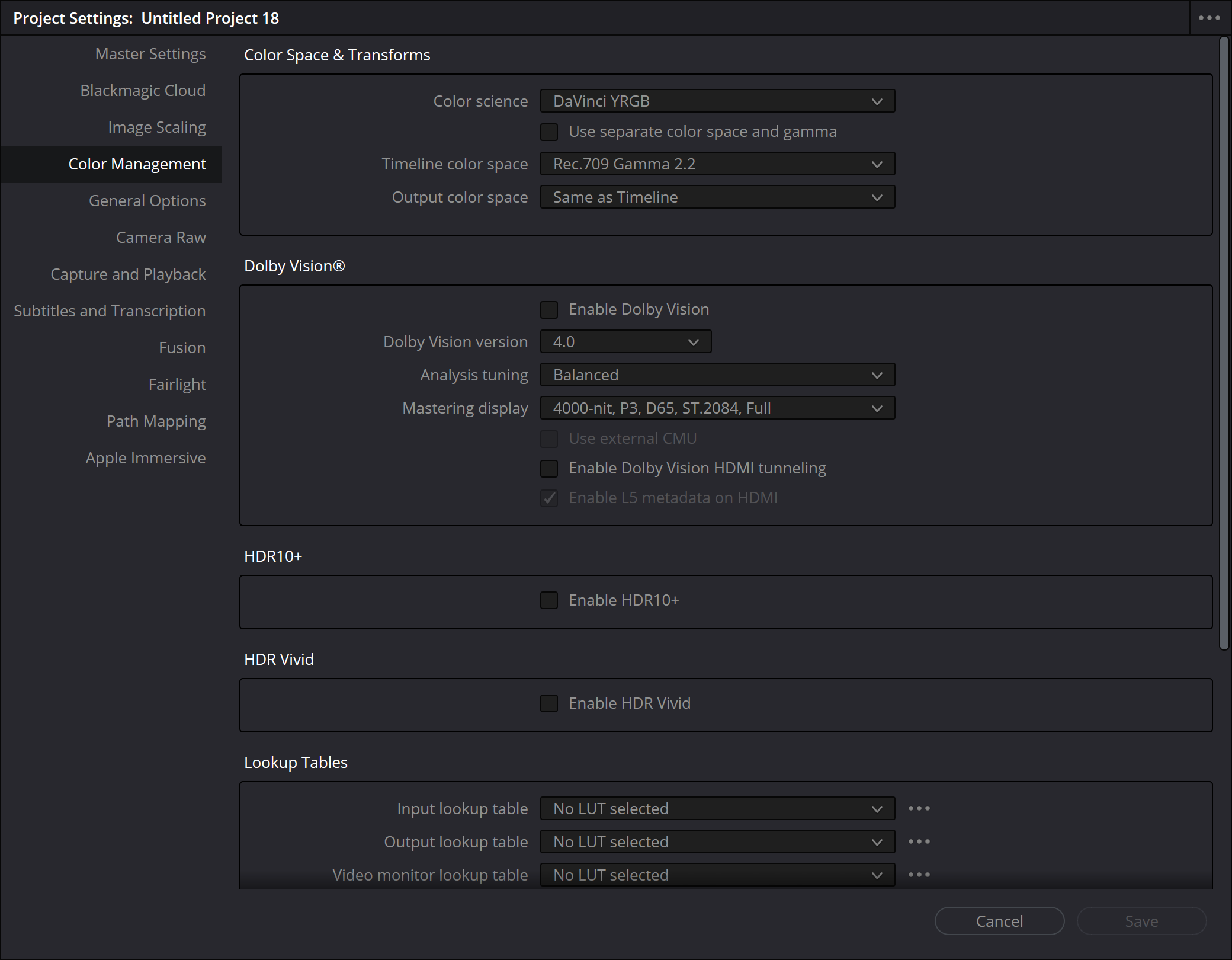
These are the SDR project settings that I used.
The reason for this behaviour is that when Use Windows display color management and HDR for viewers is enabled, the viewer uses a HDR surface (presumably scRGB). Windows does not scale HDR surface exposure based on the Windows SDR content brightness setting, so apps like Chrome handle scaling of HDR surface exposure by itself.
To solve this issue, I recommend Blackmagic Design to scale the viewer’s HDR surface exposure based on the
Windows SDR content brightnesssetting when output colorspace is set to Gamma or sRGB.